

How to Create a Captivate Branded Email Signature
Original Publish Date: 05/05/2025 by harindhingra
Last Edited on: 08/05/2026 by Chris Everett
Captivate employee email signatures are generated using Hubspot’s Free Email Signature Generator tool.
Below is a step-by-step guide for creating your Captivate email signature.
1. Visit the Hubspot Email Generator
Visit this URL: https://www.hubspot.com/email-signature-generator
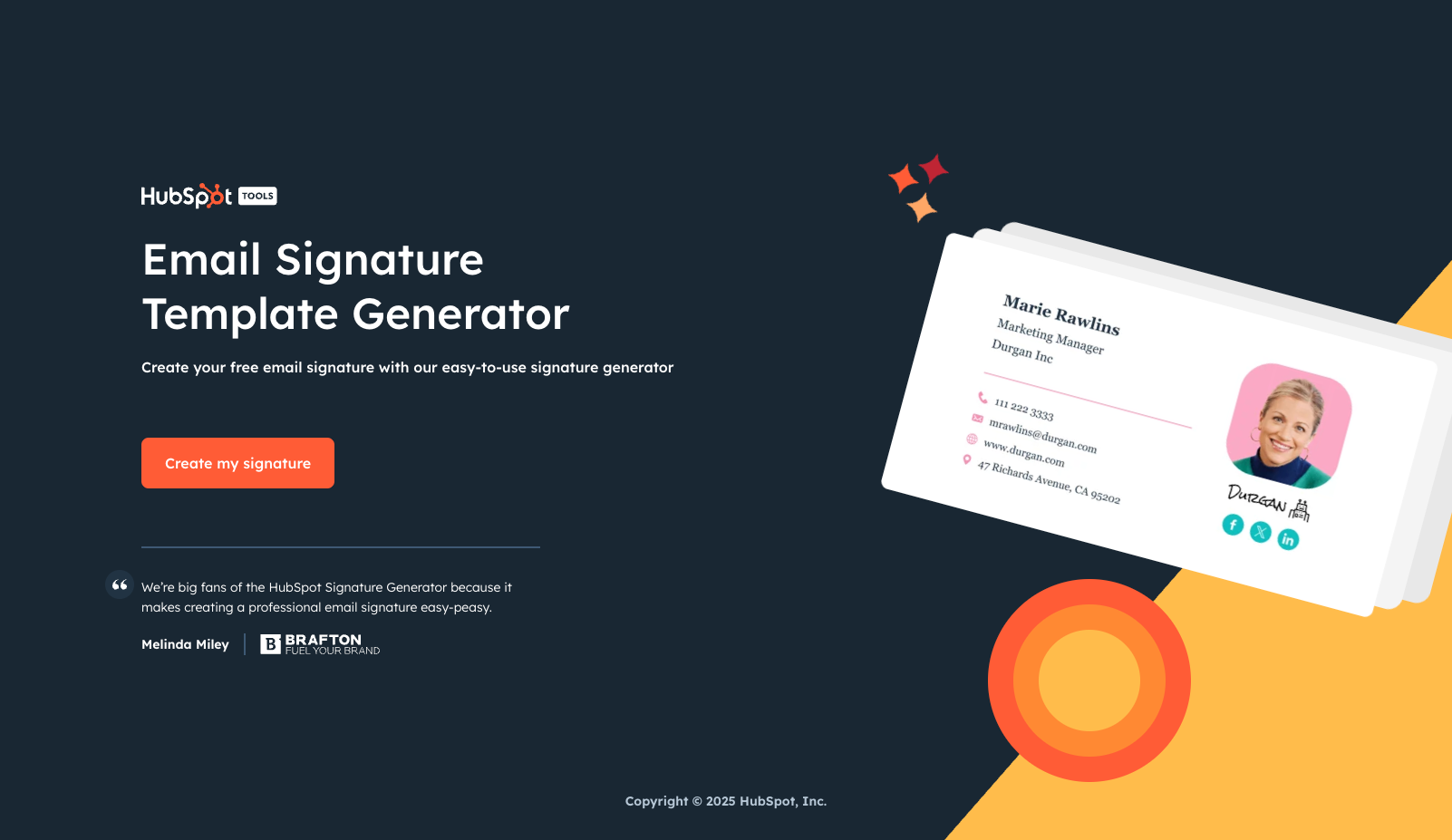
When you arrive, click on the “Create My Signature” button:
2. Select Template Option #3
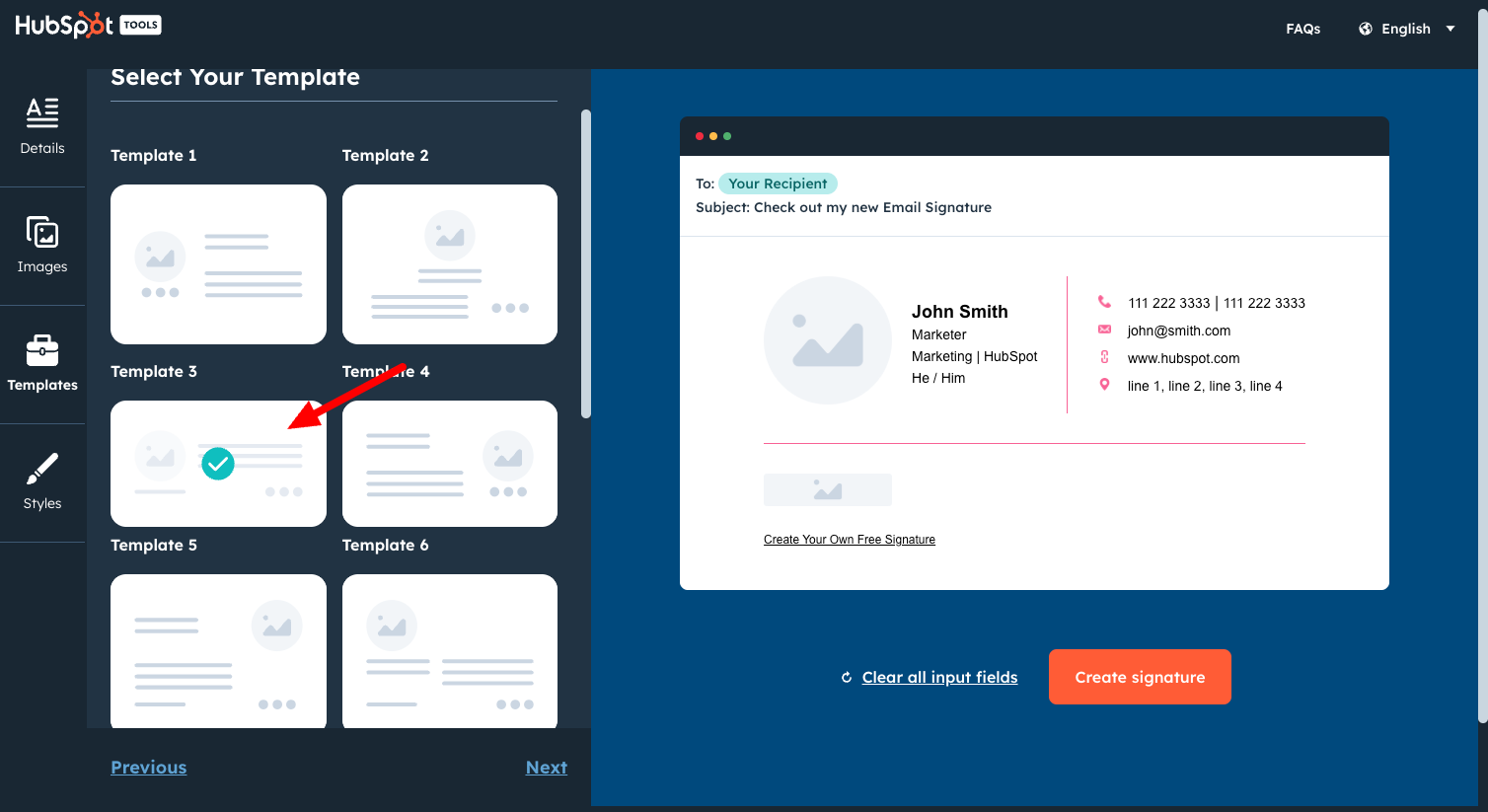
Once you enter the email signature generator, click on the “Templates” icon on the left sidebar and select Template 3.
3. Enter Your Signature Details
All Captivate branded email signatures should follow the same format with Template 3.

You will need to enter the following information into your Details:
- First Name [Your First Name]
- Last Name [Your Last Name]
- Job Title [Your Job Title]
- Company Name [Captivate Search Marketing]
- Office Phone Number [ (404) 953-2406 ]
- Website URL [https://captivate.agency]
- Email Address [Your Company Email Address]
- Address [ 150 E Ponce de Leon Ave. #200, Decatur, GA, 30030
- Social Links [Use Company Social Links for Facebook & Instagram. Use Your Personal LinkedIn if You Have One]
- Custom Field [Add a New Custom Field for the Company Tagline “It Starts With Search®“
- Uncheck Created With HubSpot Link.
4. Add Profile Profile Picture & Company Logo
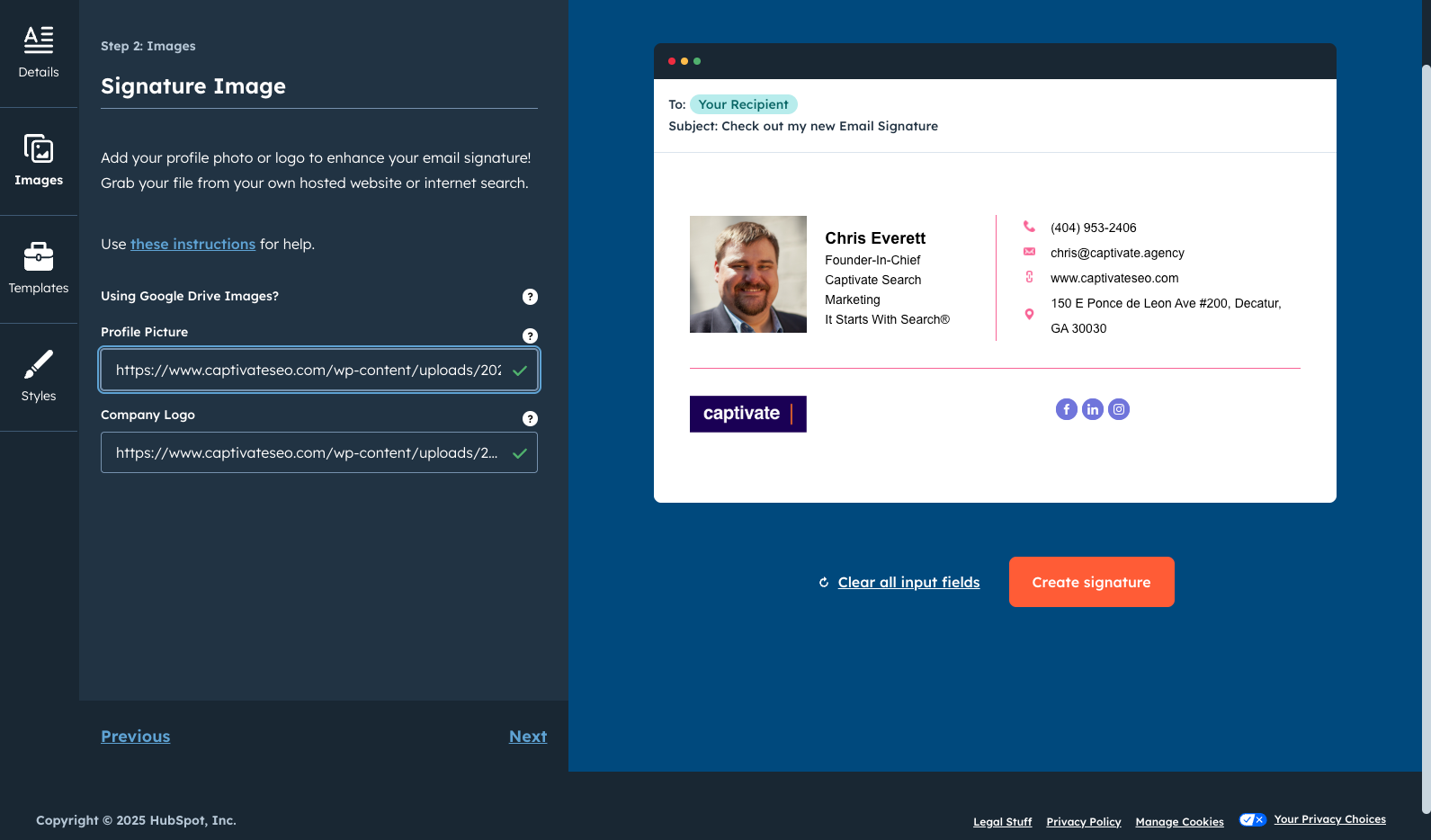
After you’ve filled out all of your details, click the “Next” link and provide links to images that can be used for your Headshot and Company Logo.
Profile Picture
For the Profile Picture, you’ll need to upload a cropped headshot of yourself at 500px x 500px a public Dropbox link or using your headshot from the Meet the Team page on our company website. You’ll need to copy/paste the URL where your headshot can be accessed directly into the Profile Picture URL field.
Company Logo
For the Company Logo, simply copy/paste this url into the Company Logo field:
https://captivate.agency/wp-content/uploads/2022/06/logoCaptivate-purple-background-01.png
When you are finished click the “Styles” icon to finish editing the remaining styles.
5. Update Signature Colors to Align with Captivate Branding

To adhere to Captivate’s email signature brand standard you will need to match the following colors and font selection:
-
- Select Theme Color [#16143b]
- Select Text Colo [#16143b]
- Select Link Color [#D54A1C]
- Customize Font [Tahoma]
- Font Size [Medium]
Once it looks correct, click the “Next” link to proceed.
6. Confirm & Submit
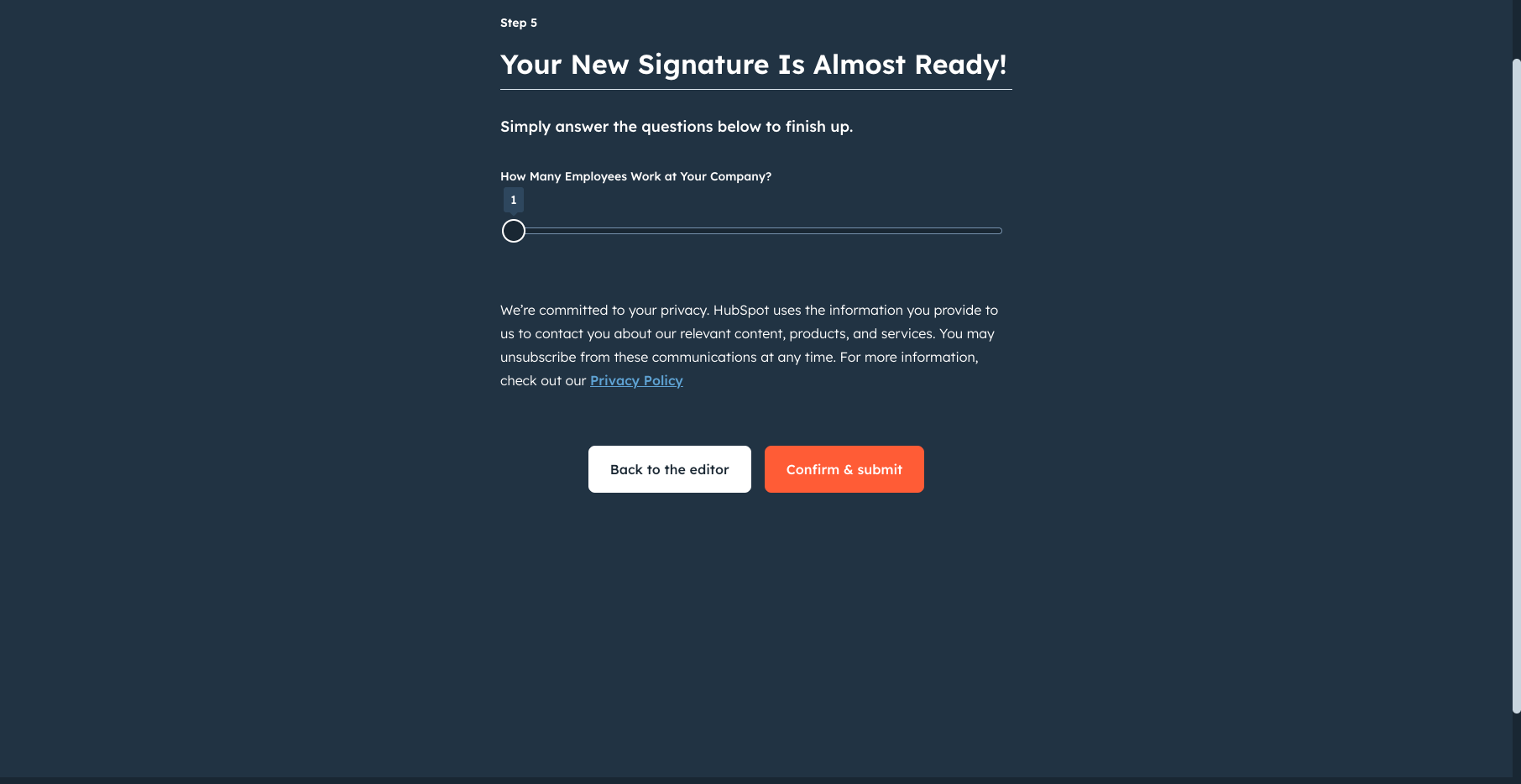
HubSpot makes you answer a question regarding how many employees work at your company?
Go ahead and leave it at 1 and click the Confirm & Submit button to move forward.
7. Copy New Your Signature
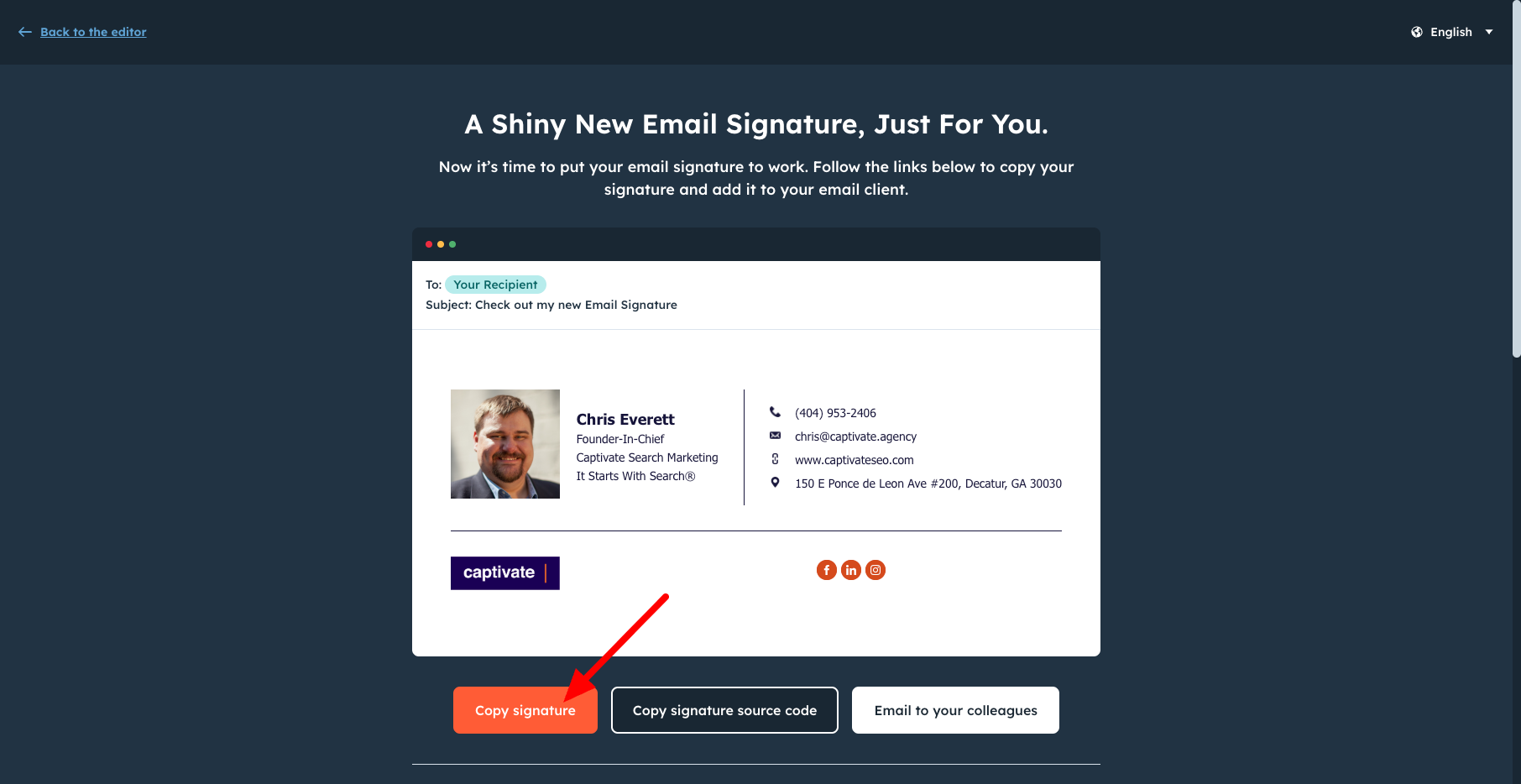
After clicking Confirm & Submit, you’ll be directed to a final screen where your new signature will be displayed.
Here you will see 3 button options. You will need to select the orange “Copy Signature” button.
8. Add Signature to Your Captivate Gmail Account
First, be sure to keep your signature open in its current window/tab in case you need to go back and click on the “Copy Signature” button again. Next, you’ll need to execute the following steps to paste in your new signature:
- Log in to your Gmail account, then click the cog in the top right corner and select “See All Settings” from the dropdown menu.

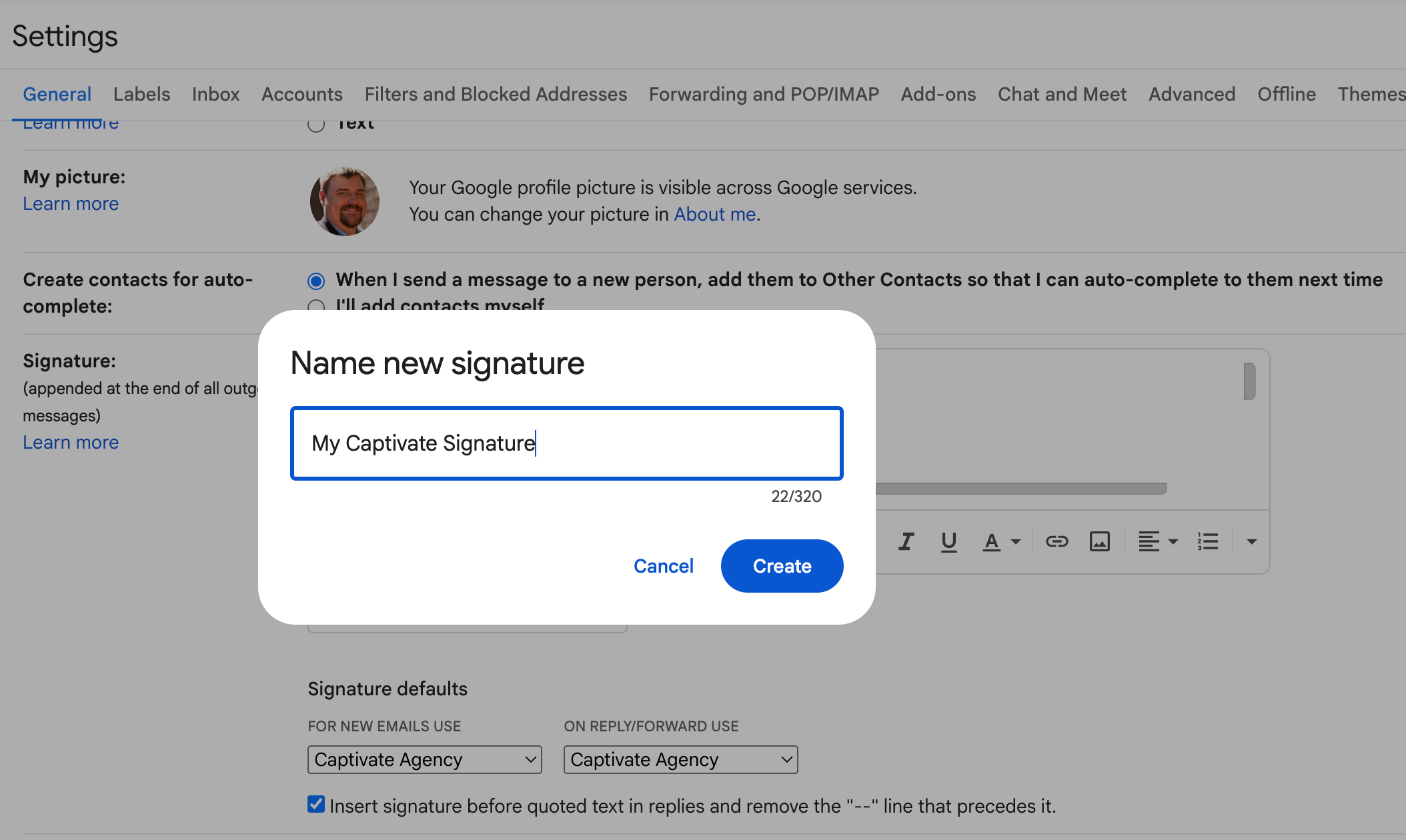
- Scroll down until you reach the email signature editor, then you can either paste your new email signature directly into the default signature editor, or you can create a new signature entirely.
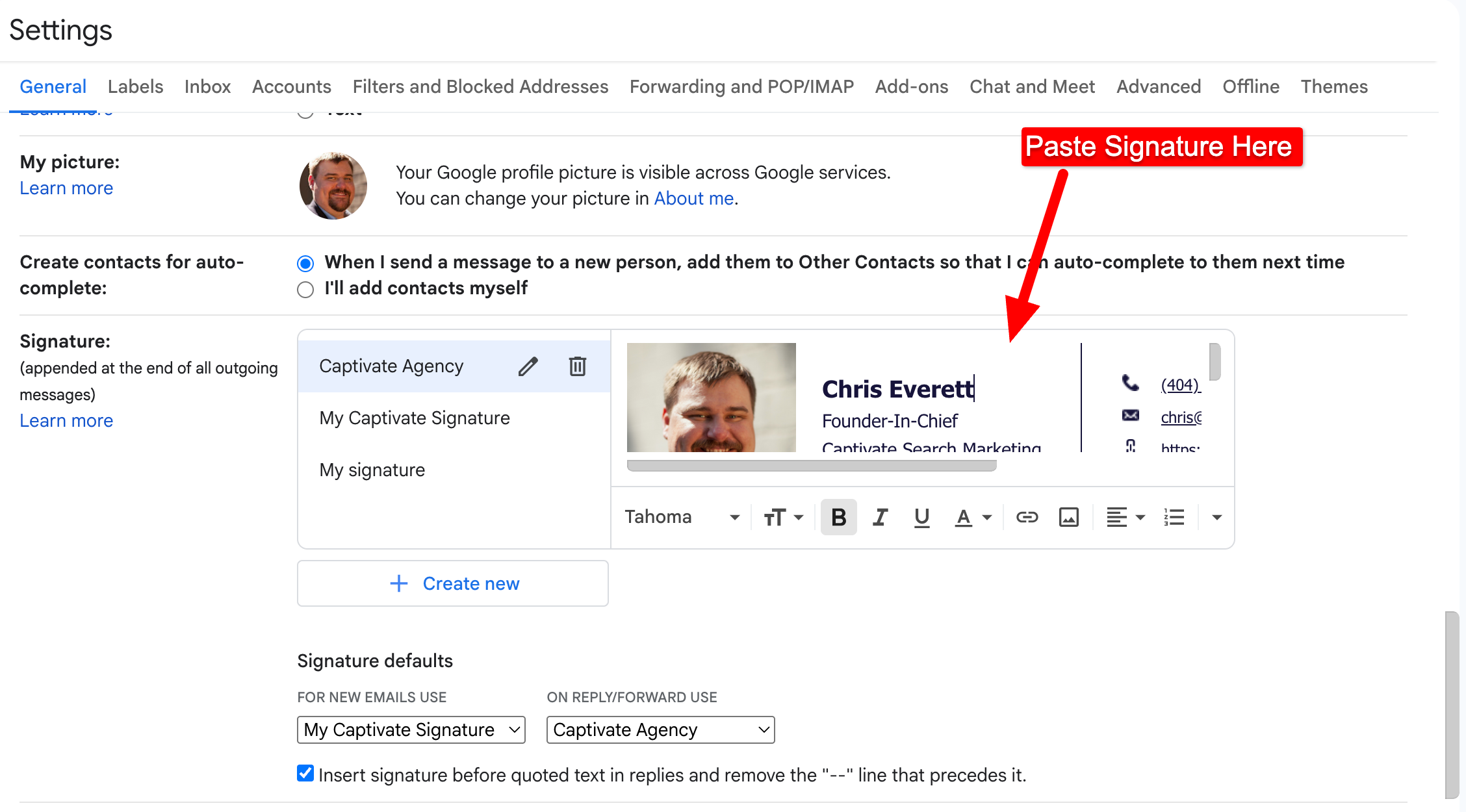
- After pasting, Scroll to the bottom of the page and click ‘Save Changes’.
Now you have a Captivate branded email signature. Congratulations! You did it!