

How to Upload WIFH & VLH Specials
Original Publish Date: 02/24/2026 by Aja Celka
Last Edited on: 02/24/2026 by Aja Celka
Following Specials Pages:
https://vitallivinghealthcare.com/peptide-glp1s-hormone-therapy-specials/
Below is a step-by-step guide for uploading monthly WIFH & VLH Specials.
1. Log In to the Backend of Website
Visit this URL: https://www.wifh.com/wp-admin/
Login with:
User: wifh.staff
Pass: 2XGN2LbfYI$cSDMO0Whvk%BK
Visti this URL: https://www.vitallivinghealthcare.com/wp-admin/
Login with:
User: vlhdev
Pass: k#%KAAl2wCf)x0uyBQ2XrJ4g
2. Go to Specials Page
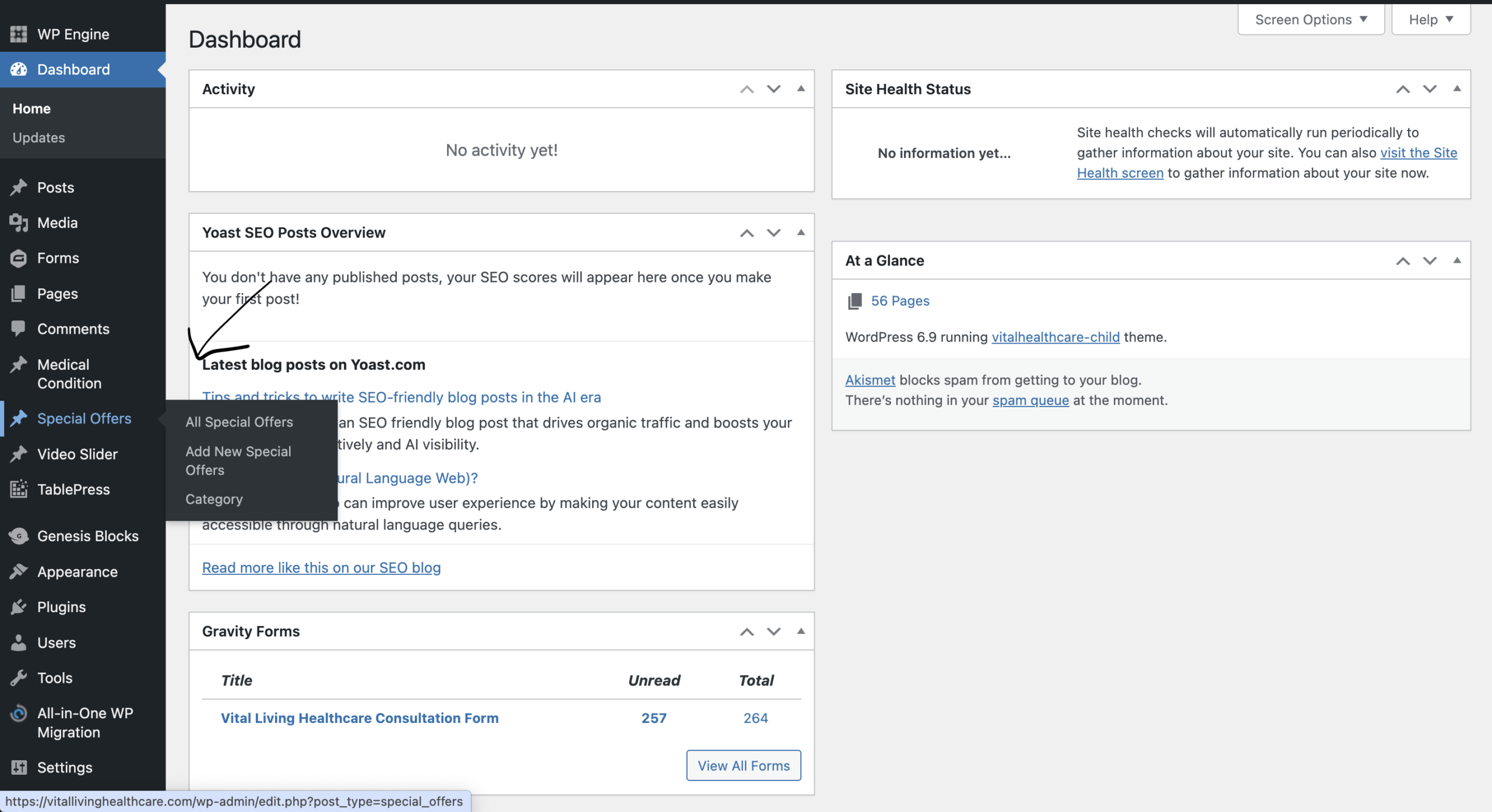
Once you are logged in, locate “Special Offers” on the left side.
Hover over it, and click on “All Special Offers”.
This will now take you to the list of all special offers.
3. Update Existing Special Offers
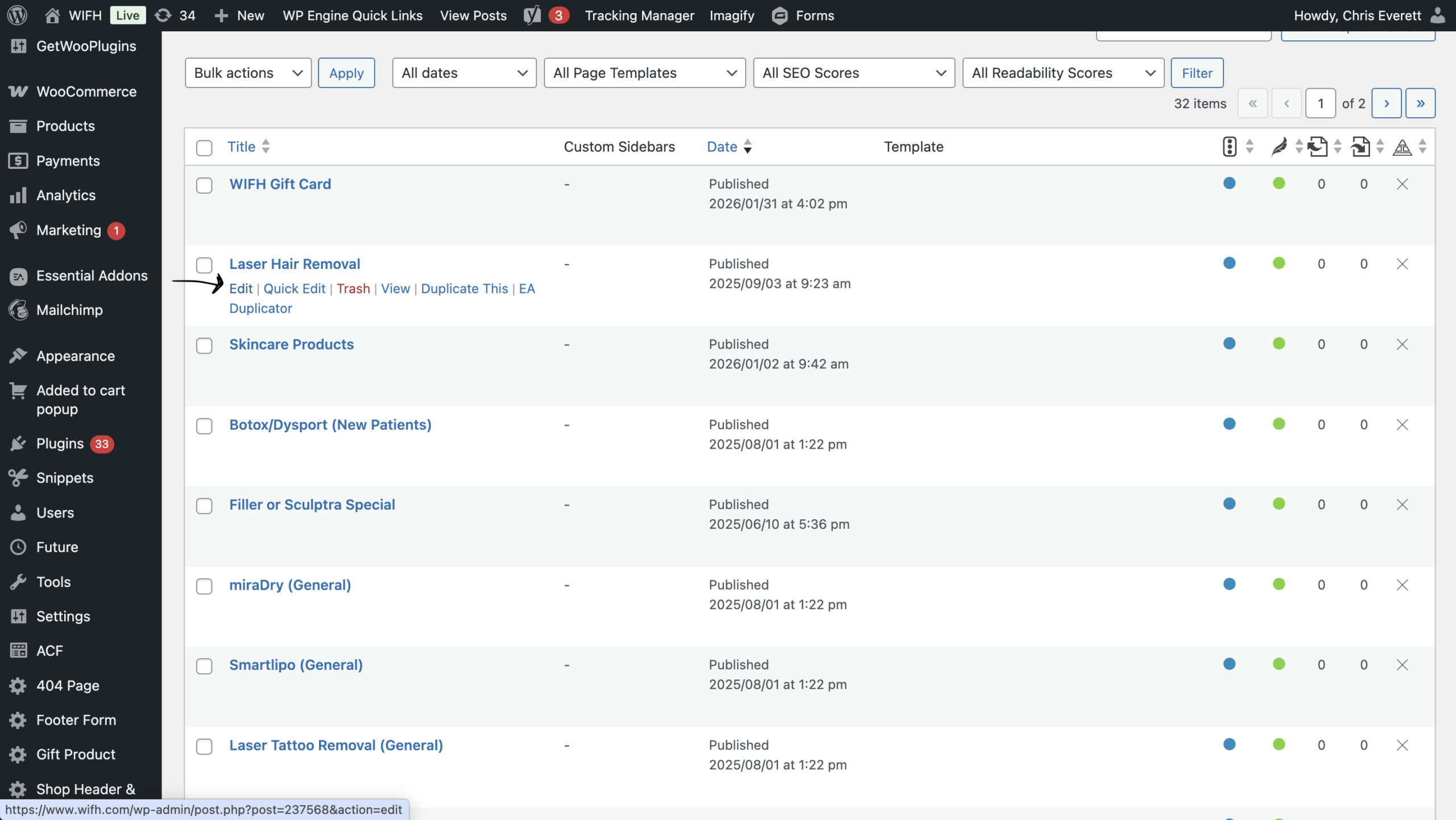
In order to update existing offers, hover over a title and click “Edit”.
This will take you to the corresponding page to edit/update the offer.
Within the page you will see the following fields:
- Title
- Image [replace with updated image, if applicable]
- NOTE: Images should be rendered down to 466 x 230 pixels
- Sub Title
- Second Sub Title
- Description
Disregard anything under “Description”.
4. Category Selection
After you’ve filled out all of the details, navigate to the right hand side where it shows a “Category” box. 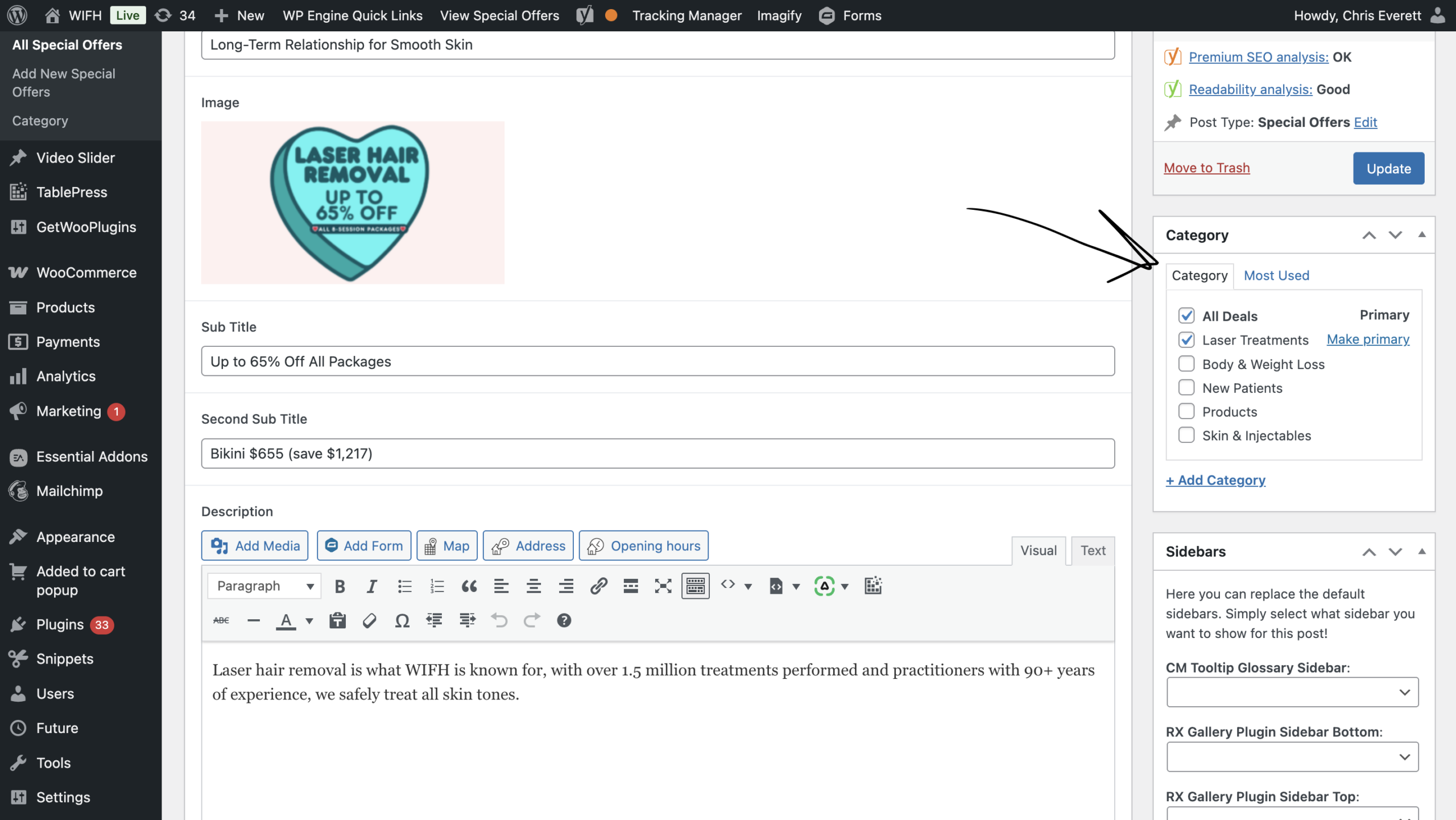
Ensure that the “All Deals” box is checked along with its corresponding category box.
Then, click the blue “Update” button.
5. No longer Offering Special
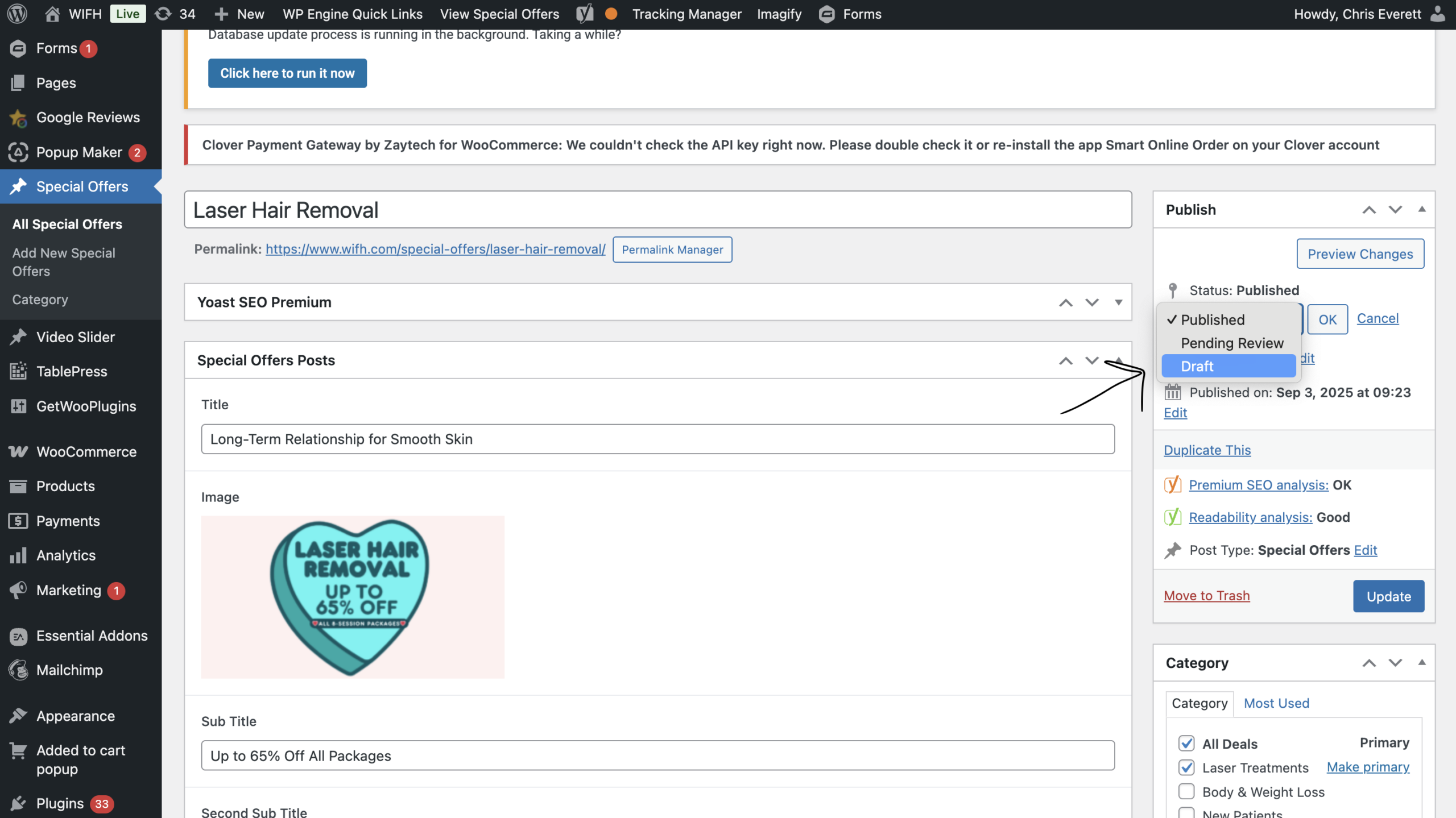
If a special is no longer being offered, you can change its status to draft mode.
In order to do this, locate the publish box on the right side of your screen.
It will say:
⟟ Status: Published [edit]
Click Edit, expand the drop down & select “Draft”
7. Add Net New Special Offer
First please check to make sure there is not already the same existing, live offer before you want to add a brand new special offer.
When you are ready:
- Locate “Special Offers” on the left side.
- Hover over it, and click on “Add New Special Offers”.
- Move forward as shown above.
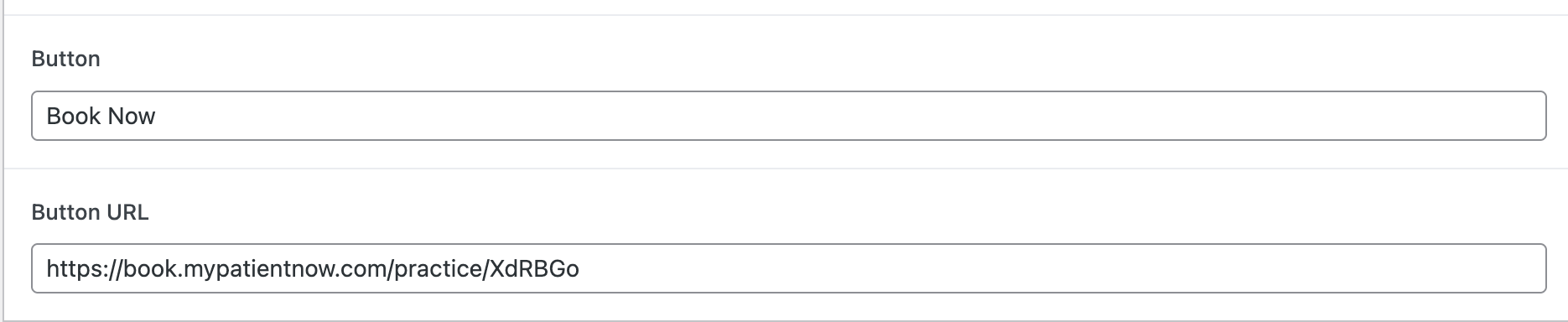
For the following fields, “Button” & “Button URL”, type in the CTA you would like and then add the link you would like it to drive to.
Examples:

Note: To ensure the offer goes live, make sure it says:
𓁹Visibility: Public